Files and SFTP
Edit, upload and extract files in the browser, or go straight onto the server over SFTP with FileZilla, WinSCP or Cyberduck.
The file manager
The Files tab shows all of your server's files. At the top you search, create a Folder or a File, upload with Upload (or simply drag files into the window), or use From URL to fetch a file from a public address straight onto the server.
- Edit opens text files up to 2 MB in the editor; save with Save or Ctrl + S.
- Extract here unpacks .zip, .tar, .tar.gz, .tgz, .tar.bz2, .tar.xz, .rar and .7z. Compress turns files into an archive.
- Rename, Move, Make a copy, Download and Delete are in each row's menu. Select several rows with Shift or Ctrl.
Uploading in the browser works up to the server's limit, usually 100 MB per file. Upload larger files, whole worlds or modpacks over SFTP.
The recycle bin
Deleted files go to the Recycle bin and can be restored for 7 days. Until then they count toward the server's storage but are left out of every backup. If you want the space back at once, choose Delete for good now when deleting. Very large deletions (from 2 GB, adjustable) are permanent straight away.
Connecting over SFTP
The login details are in your server's Access tab.
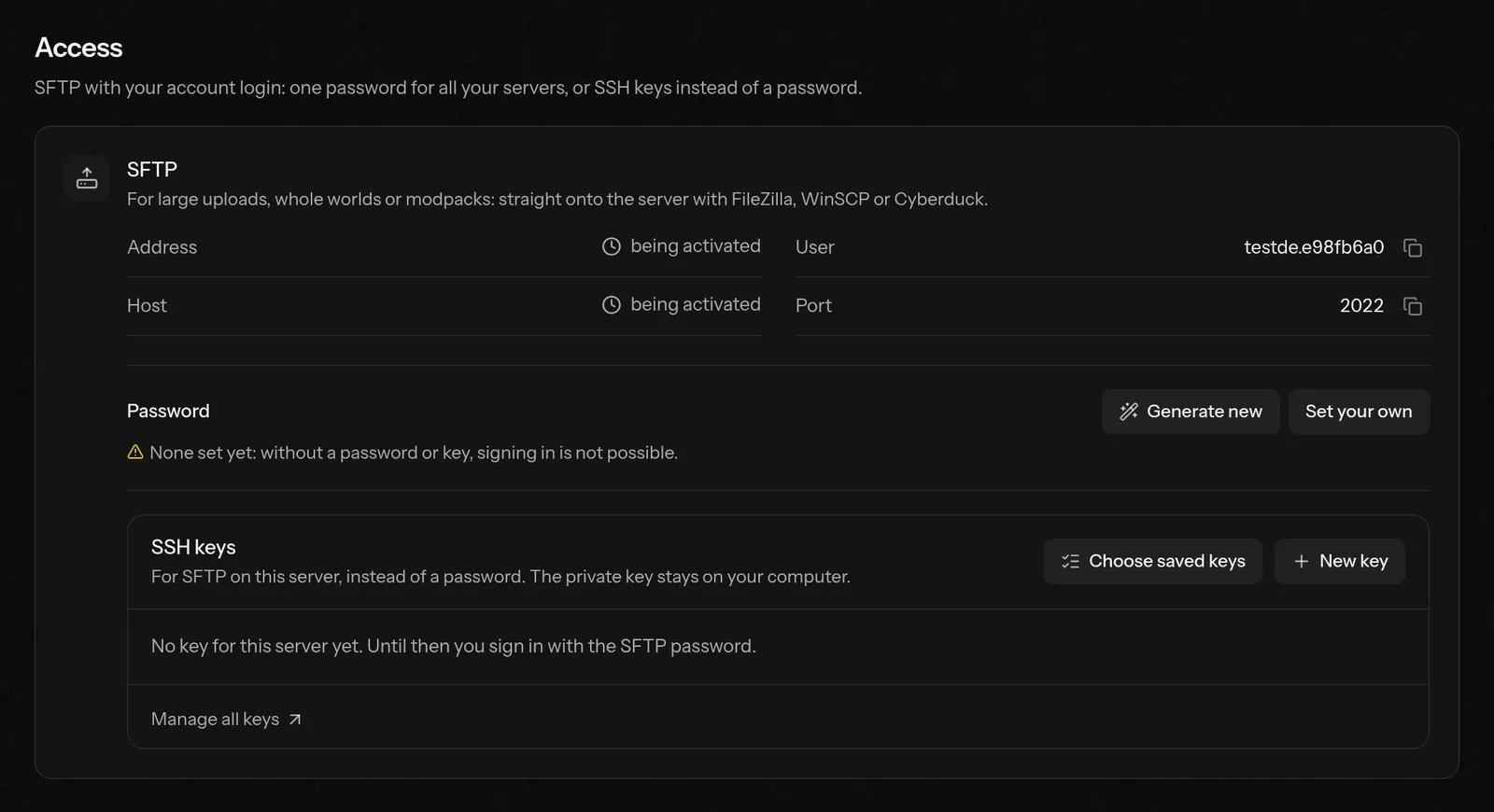
- Host
- the server node's name, as shown in the tab
- Port
- as shown in the tab (usually
2022) - User
- your account name, a dot and the first 8 characters of the server ID, such as
anna.ab12cd34 - Password
- your SFTP password (see below) or an SSH key
Open the Access tab.
Set an SFTP password: Generate new (shown only now) or Set your own (at least 12 characters). If your sign-in is older than 10 minutes, briefly confirm that it is you.
Connect: Open in WinSCP (also works with Cyberduck), or download the FileZilla connection and read it in with File › Import in FileZilla.
The SFTP password belongs to your account, so it works for all your servers and all those shared with you. A new password replaces the old one at once. It cannot be viewed later; just set a new one then.
With an SSH key instead of a password
In the card's SSH keys section, Choose saved keys picks one of your keys, or New key adds a public key; at first it applies to this server only. All keys live in your account under SSH keys; there you choose whether a key applies to all game servers, all websites or only certain servers.
Good to know
- There is SFTP only, no FTP and no console over SSH.
- File permissions (chmod) cannot be changed in the file manager. To download a folder, compress it first.
- People you share the server with sign in with their own account name. With the View files right read-only, with Edit files they can write too.
- While the server is suspended, installing or restoring a backup, SFTP is locked.
Related articles
- Create and restore backupsA backup saves all of your game server's files. How to create one, restore it in full or file by file, what is backed up automatically every night, what the safety copy before risky changes is, and where backups are kept.
- Move from another hostIs your server still running elsewhere? With the old host's SFTP or FTP login the portal copies the files 1:1 onto your new server, without a detour through your PC.
- Share a server: sharing with permissionsInvite players, moderators or admins by email and decide exactly what each person may do. Invoices, passwords and sharing stay with you.
- Install plugins and modsSearch, install, update and remove plugins and mods right in the customer area. With dependencies, automatic updates and a check after the start.
Need help?
If this guide does not answer your question, write to us. Usually within 24 hours.