Create and restore backups
A backup saves all of your game server's files. How to create one, restore it in full or file by file, what is backed up automatically every night, what the safety copy before risky changes is, and where backups are kept.
Backups are in your game server's Backups tab. How many slots your package has and how many are in use is shown at the top under Used. VPS and containers have snapshots instead.
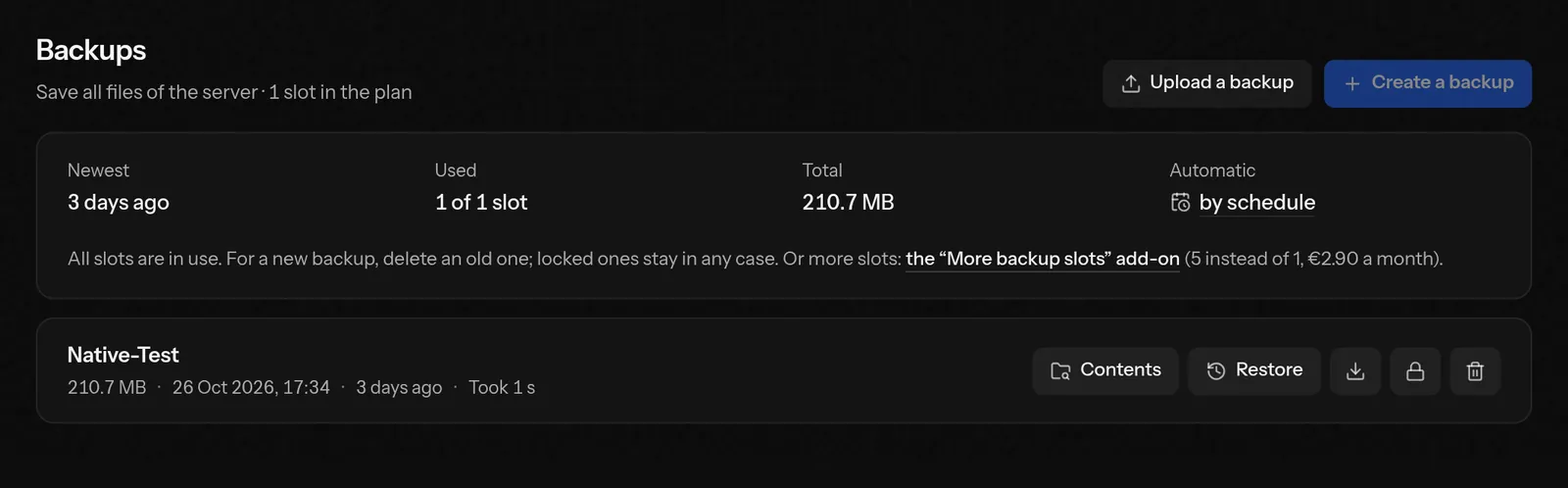
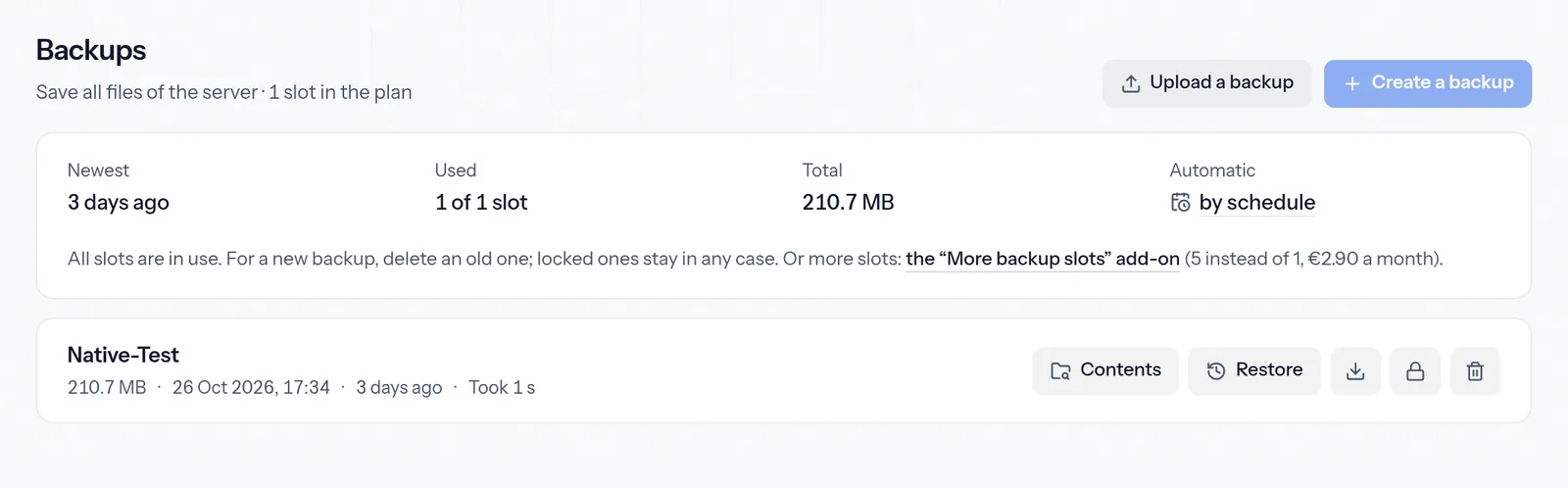
Create a backup
Press Create a backup.
Give it a name if you like, such as “Before the update”.
Under Leave out choose what need not be saved: logs, cache and old packed logs. Add further paths one per line, as in a .gitignore.
Press Back up now. The server keeps running.
When all slots are in use, delete an old backup first; backups you create by hand never replace another. Protected backups (the lock icon in their row) cannot be deleted until you remove the protection.
Restoring
Restore in a backup's row stops the server and puts its files back. With Delete all current files first you end up with exactly the backup's state; without it, files that are not in the backup stay. You confirm by holding. The server does not start by itself afterwards; the console shows the progress.
If you only need single files, open Contents: pick files or folders there and restore them into a new folder or to their original place.
Automatically every night
A new game server backs up every night from the start: it gets the Nightly backup schedule, which makes a backup at a fixed time between 2:00 and 6:00, even when the server is off. The time differs from server to server, so that not all of them back up at once. The Backups tab shows it under Automatic, and below it when the last automatic backup was made and when the next one is due. Change the time right there with Change time; switch off or delete the schedule in the Schedules tab.
Servers that existed before this default keep their schedules. If none of them backs up, the Backups tab offers the schedule once: Set up a daily backup creates it, No, thanks leaves everything as it is.
When all slots are in use, a backup from a schedule first replaces the oldest one a schedule made, otherwise the oldest unprotected one. So protect the backups you definitely want to keep with the lock icon in their row: no schedule replaces a protected backup. If every slot is protected, the automatic backup finds no room; the Backups tab then says so. More in Schedules.
Checked backups
After each automatic backup the portal checks whether it could be restored: it reads the whole archive the way a restore reads it, compares its checksum with the one taken when it was made, counts files and folders, looks for key files (server.properties and the world for Minecraft, otherwise the startup file) and compares a sample of files that have not changed since with those on your server. Nothing changes on the server. Under each backup you see the result, for example “Checked: complete, 1,204 files, world “world” present”, “Not checked” or “Check failed” with the reason.
With Test restore you check any backup yourself; you see the steps live, then every detail that was found. If a check fails, you are told through the same channels as for a failed backup (email, Discord, browser), not by WhatsApp. Checked means: complete and readable, compared by samples. No check can promise that every save in it is free of errors.
Safety copy before risky changes
Before a change that switches a lot, the portal makes a safety copy of the whole server by itself: before a version or software switch, a modpack, a game switch, a reinstall, a wipe and deleting a world. The change shows it as its first step Create safety copy; if that step goes wrong, nothing is changed.
A safety copy takes none of your backup slots and pushes out no backup. It is listed with its reason, for example “Before switching to Paper 1.21.4”, can be restored, browsed and downloaded like any backup, and is deleted after 7 days. There are at most two per server at a time; a new one replaces the oldest. Switch it off for this server in the Backups tab; then one is made only when you tick it for the change itself.
Where backups are kept
Where your server's backups are kept is shown in the Backups tab under Storage.
- On your server's node: the backups are on the same machine as your server. They help after mistakes, updates and things deleted by accident. If that machine fails, though, its backups are unreachable or lost as well. So download important backups as well.
- A backup store of its own: a backup is packed on the node, uploaded to a separate store and is no longer kept on the node afterwards. If your server's machine fails, it stays.
Downloading and uploading
Download any backup with the icon in its row. Bring in a backup from elsewhere with Upload a backup (.tar.gz, .tgz or .zip). Upload larger archives over SFTP first and restore them from there.
Everything at once, with databases and setup, is under Export everything.
More slots
Book more backup slots with the More backup slots add-on in the Change plan tab. How many slots it brings and what it costs is shown in the Backups tab once all are in use, and with the add-on itself.
Good to know
- Files in the recycle bin are left out of every backup.
- There is no retention period to set: backups stay until you delete them or a schedule replaces the oldest. Safety copies are deleted after 7 days.
- When your contract ends, the backups stay for another 30 days so you can take the server up again, and are deleted then, also in the separate backup store.
- People you share the server with need the Create backups right to create and download, and Restore backups to restore and delete.
Related articles
- Schedules: restarts, backups and commands at set timesYour game server handles recurring work by itself: restart daily, back up at night, save regularly. With templates, fixed times, intervals or cron.
- Files and SFTPEdit, upload and extract files in the browser, or go straight onto the server over SFTP with FileZilla, WinSCP or Cyberduck.
- Export everything: take your game server with youIn one click you download everything of your game server: files, databases and setup. Also after your contract has ended, until the data is deleted.
- Snapshots: keep a state and go back to itA snapshot keeps the state of your VPS or container's whole disk, for example before an update. If something goes wrong, you go back to it in a few clicks.
Need help?
If this guide does not answer your question, write to us. Usually within 24 hours.