Switch software and version
Paper, Purpur, Fabric, Forge, NeoForge or Vanilla: how to switch your server's software or Minecraft version, with a backup first and a check of your plugins.
Which software your Minecraft server runs, and in which version, is set in your server's Version tab. The portal takes care of the download, the matching Java version and the restart.
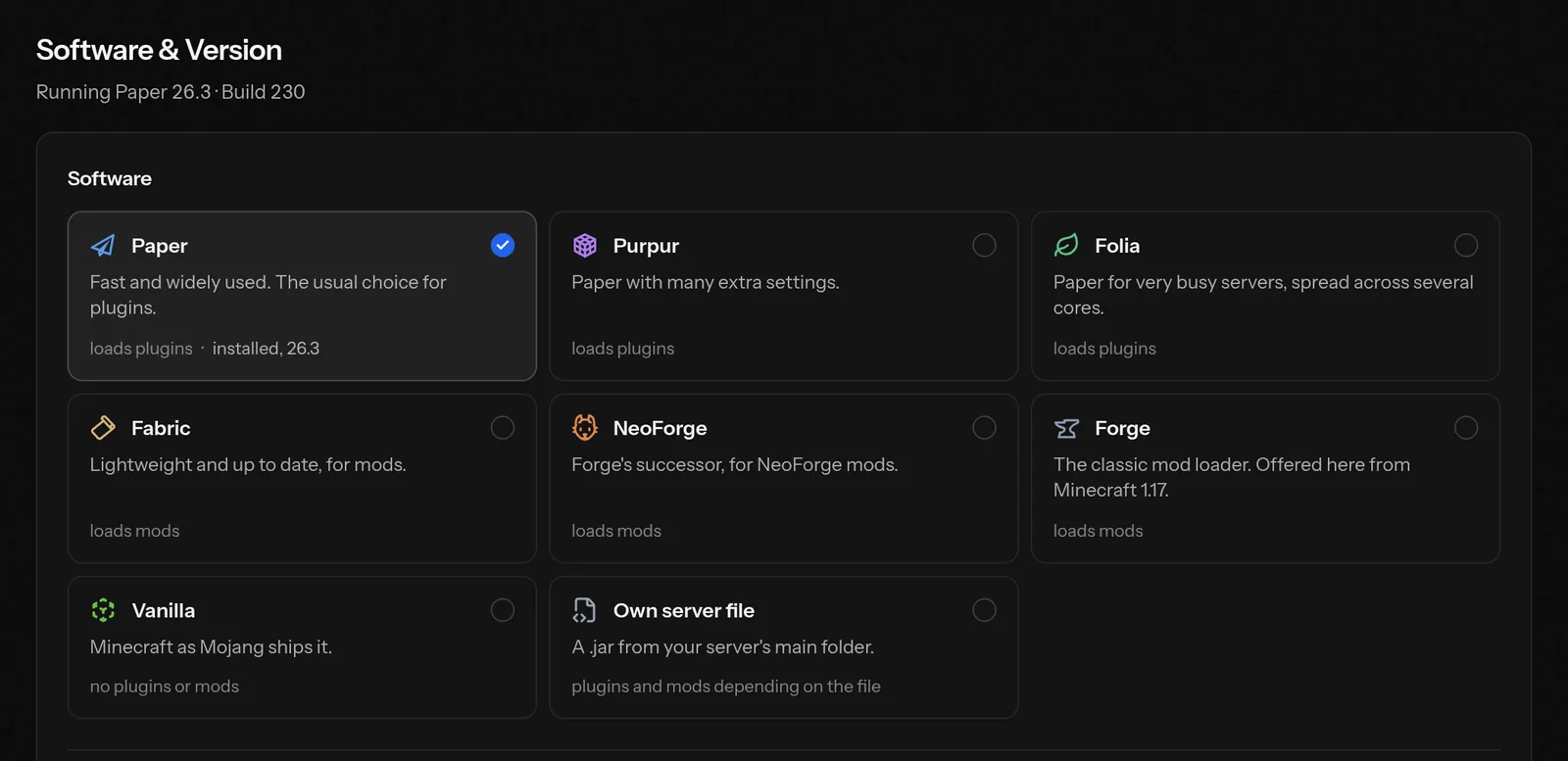
What software there is
- Paper
- Fast and widely used, the usual choice for plugins.
- Purpur
- Paper with many extra settings.
- Folia
- Paper for very busy servers, spread across several cores. Many plugins do not run on it.
- Fabric
- Lightweight and up to date, for mods.
- NeoForge
- Forge's successor, for NeoForge mods.
- Forge
- The classic mod loader, offered here from Minecraft 1.17.
- Vanilla
- Minecraft as Mojang ships it, without plugins or mods.
Under Experimental you find Arclight and Youer, which load mods and plugins at once. They are not officially supported: some plugins or mods will not run, and new Minecraft versions come later. Under Own server file you can also pick or upload your own .jar from the main folder; updates and the Java version are then up to you.
You can choose from the released versions (no snapshots or release candidates), the newest 60 per software. Spigot, CraftBukkit, Quilt and BungeeCord are not offered as switch targets. Velocity is available as the proxy of a network, through the Split tab.
How to switch
Open your server and its Version tab.
Pick the software and, below it, the Minecraft version. Read the notes that appear under the selection (for example when the version is older than your world).
Leave Create a backup first switched on. It takes up one of your backup slots; if all are in use, delete an old backup first.
Press Switch to … and hold the confirmation. The server is stopped; anyone playing is disconnected.
The portal shows the steps as they run: backup, stop the server, new server file, Java version, adjust plugins, start. At the end it waits until the server is up.
Without a backup a switch cannot be undone. A world also cannot be downgraded to an older Minecraft version: Minecraft may damage it or generate a new one.
Your plugins and mods during a switch
When you stay with plugins (say, Paper to a newer Paper version) or with the same mod loader, the portal checks every file in your plugin or mod folder before the switch: it recognises each by its checksum on Modrinth and Hangar and looks for the matching version for the target. The result is a plan in three groups:
- Updated with the switch: the old file is removed and the matching version takes its place.
- Switched off: there is no version for the target; the file is set aside (
.jar.disabled) and can be turned on again in the Plugins tab. - Your own plugins we cannot manage: files none of the sources know stay as they are.
For each row you can choose Update, Switch off or Leave. The plan runs as its own step after the new software is in place and before the start. Whether a plugin really runs with the new version only shows when the server starts; the Plugin health card in the Plugins tab reads the log for that.
When you switch between plugins and mods (for example from Paper to Fabric), the files stay where they are but are not loaded. Nothing is deleted by a switch: if the mods folder has to make room for Forge or NeoForge, it is renamed to mods-vorher-….
Forge and NeoForge
Forge and NeoForge do not come with a ready server file. The portal therefore fetches the official installer and runs it once on your server; it downloads Minecraft and the loader's libraries, which usually takes a few minutes. After that the server starts through the files the installer writes. If anything fails, the portal restores the previous start line.
Forge is offered from Minecraft 1.17, with the recommended build where there is one. You install mods for Forge and NeoForge in the Mods tab (from Modrinth).
Java version
The portal sets the matching Java version itself, following Mojang's data for the chosen version (for example Java 17 for 1.18 to 1.20.4, Java 21 from 1.20.5). There is nothing for you to do.
New builds of the same version
When there is a newer build of your software and version (or a new Fabric loader), a card appears at the top of the tab with the changes and Update to …. The Minecraft version, world, plugins and settings stay as they are.
Limits
- At most 4 switches in 10 minutes.
- While an installation is already running on the server (a modpack, for example), no switch is possible.
- People you share the server with need the right to change the game settings for this.
Related articles
- Install plugins and modsSearch, install, update and remove plugins and mods right in the customer area. With dependencies, automatic updates and a check after the start.
- Install modpacksModpacks from Modrinth for Fabric, Quilt, Forge and NeoForge, or your own server pack: the portal puts in the loader, the mods and the settings and starts the server.
- Create and restore backupsA backup saves all of your game server's files. How to create one, restore it in full or file by file, what is backed up automatically every night, what the safety copy before risky changes is, and where backups are kept.
Need help?
If this guide does not answer your question, write to us. Usually within 24 hours.